
It is essential for some organizations to support BYOD for the iOS and Android platforms.
This is most easily done while protecting data by utilizing Mobile Application Management (MAM), App Protection Policies (APP), and Conditional Access policies to enforce it.
Along with this, we are all in the eternal search for features that provide more security and a better user experience. Such unicorn features are few and far between, as more security usually means impacting the end-user experience in some way.
But one such feature is the ability to use passkeys in the Microsoft Authenticator app on iOS and Android devices — a device-bound passkey that greatly enhances security, makes the login experience smoother, and reduces the need for passwords.
But there is an issue.
The Registration Flow#
The current registration flow for the Passkey is as follows:
- Open the Authenticator app and set up your account
- Create a passkey
- Authenticate towards Microsoft Entra ID
- Start using your passkey 🎉
📖 Register passkeys in Authenticator on Android or iOS devices
But the authentication requires a login from the Authenticator — an app that doesn’t support App Protection Policies, as it brokers the app-based Conditional Access policies on both iOS and Android.
This has the unfortunate result of blocking the device from registering the passkey.

The Obvious Solution#
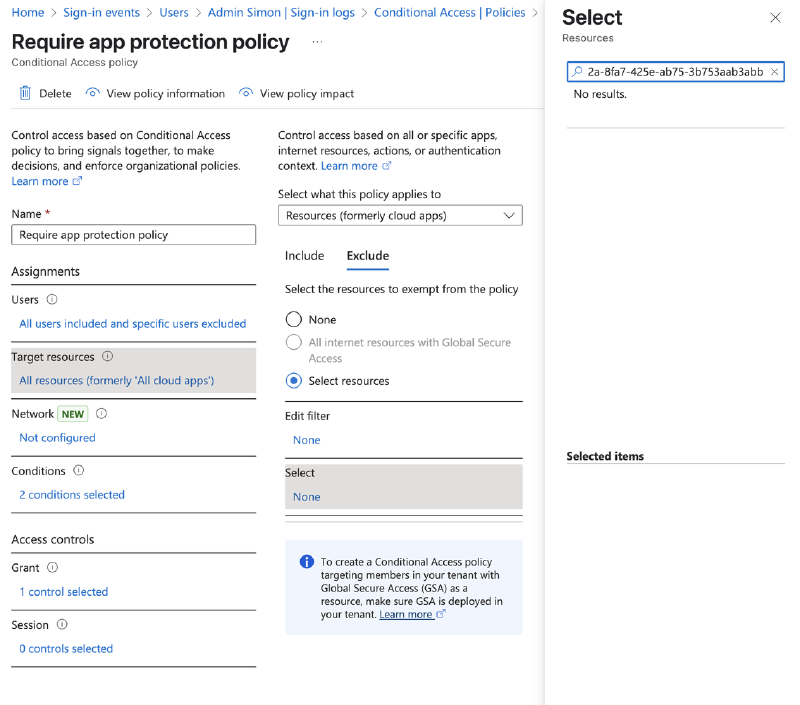
The obvious solution to this would be to exclude the Microsoft Authenticator app from the Conditional Access policy on iOS and Android devices, but…
First-party apps cannot be individually excluded when targeting “All resources” (formerly “All cloud apps”) in a Conditional Access policy.
Is There a Workaround?#
Is there a way to exclude the application anyway?
Yes, there is. Microsoft documents a few workarounds:
- Filter for applications — Use application filters to exclude the Authenticator app from the Conditional Access policy.
- MDM + compliant device — Enroll the device and require a compliant device grant instead. But that makes the whole point of BYOD void.
- Temporary exemption — Temporarily exempt users from the policy while they register their passkey.
📖 Users who can’t register passkeys because of CA grant controls
Conclusion#
Let’s hope that Microsoft continues to improve the experience around the Authenticator app and Conditional Access.
In the meantime, if you want to use BYOD devices with passkeys for a phishing-resistant MFA option, the choice is either to:
Option A: Use application filters to exclude the Microsoft Authenticator app from your Conditional Access policy.
Option B: Create a CA policy that includes the client apps you want to protect, which automatically excludes the Microsoft Authenticator app.
⚠️ This is not a great solution, as it will prevent blocking all apps not specifically assigned an APP or previously approved and excluded by IT.
Option C: Simply not use passkeys for BYOD on iOS or Android…
If you have stumbled upon a different solution, please let me know! 🙂
If I myself stumble upon a solution or something changes that allows for the exclusion of the Microsoft Authenticator app and allows the enforcement of an APP on all client apps on iOS and Android, I will make sure to update this article.
Update 27 May 2025: Have a look at this article by Microsoft, linked in the comments of my original post by Rojan Koc: Users who can’t register passkeys because of Conditional Access grant controls